


BandiView HDR support

HDR viewing is a paid feature available in BandiView Professional Edition.
What is HDR
HDR stands for High Dynamic Range, a technology that makes photos look brighter and clearer, as they do to the eye.
Our eyes can see dark shade and dazzling sunlight in the same scene. However, standard (SDR) photos and screens have a narrow range of brightness and color. So even when you shoot the same scene, a bright sky turns white and dark shadows turn black.
HDR widens this range, so bright areas look brighter and details remain visible in dark areas. It looks closer to the scene you saw with your own eyes.
SDR and HDR brightness and color range comparison
BandiView supports an image output using HDR. If both hardware and software support HDR, the app can express more natural and realistic details that only the human eyes can tell.
Photos taken in HDR
Photos are saved in HDR in the following cases.
- Taken with an Android smartphone or iPhone released in 2024 or later
- Taken with a camera that supports HDR shooting
- Saved as HDR in the latest Photoshop
- Game screen captures and saved 3D rendering results
Why photos viewed on a smartphone look darker on a PC
Most smartphone photos are Ultra HDR JPEG files. These files contain a regular photo and HDR information (Gain Map), so the same file is displayed differently depending on the program that opens it.
In programs or on monitors that do not support HDR, HDR photos are displayed in SDR and can look darker and flatter than on a smartphone. When you turn on HDR in BandiView, you can see the same brightness and colors as on your smartphone.
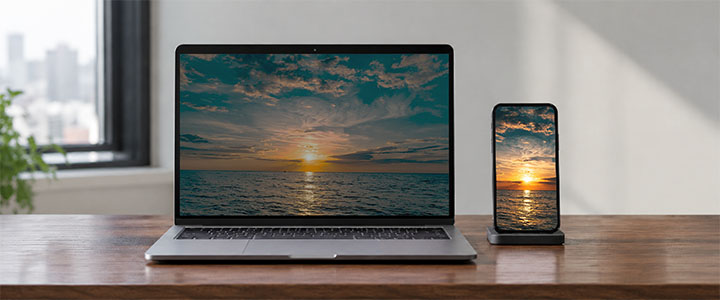
How to view Ultra HDR JPEG files on a PC
Requirements for viewing in HDR
To view an HDR image with BandiView, the following requirements should be met first:
- Windows 10 or 11 should be installed on your computer.
- Your display should support HDR10.
- Your graphics card should support HDR. (Mostly does if released in 2015 or later.)
- HDR settings in Windows should be turned on.
- The format of the image should support HDR.
- BandiView Professional Edition (Windows 10 version 1803 or later)
- Set BandiView HDR output to On or Auto
- Set BandiView video output to DirectX
Turn on BandiView HDR support
To view HDR images in BandiView, enable the HDR output mode in the HDR settings as shown below.
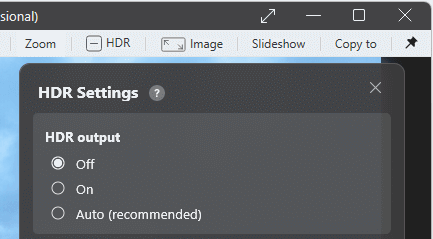
- Off: Displays all images in SDR.
- On: Always uses HDR output.
- Auto (Recommended): Automatically switches HDR images to HDR and regular images to SDR.
HDR image formats
BandiView supports HDR for the following image formats:
- Ultra HDR (Jpeg)
- AVIF
- EXR
- JXR (HDP, WDP)
- HEIC(HEIF,HIF)
- HDR PSD (32bit)
- HDR DDS
- HDR JXL
- HDR PNG (cICP)
- Radiance HDR
BandiView does not yet support HDR for the following formats, and an image output of these formats currently uses SDR instead:
- RAW (DNG, CRW, ARW, ...)
- HDR Tiff
HDR support test
Download sample files at the link below to test HDR support of BandiView.
Frequently asked questions
Can I not view HDR photos without an HDR monitor?
You can. HDR photos open like regular photos and are displayed in SDR.
Can I view HDR photos in HDR with the free version?
No. HDR photos open but are displayed in SDR. HDR output is available in Professional Edition.
I turned on HDR, but the screen does not change.
The message in the HDR settings window shows the cause.
Related help
- HDR settings in Windows should be turned on.
- How to view Ultra HDR JPEG files on a PC
- When HDR images do not look like HDR
Official image viewer with HDR support