


How to customize shortcuts
Assign your preferred key combinations to frequently used commands. You can assign multiple shortcuts to one command or assign a different command to a default shortcut. Open Keyboard in Configuration to add, enable, disable, modify, or delete custom shortcuts.
Keyboard settings
Open Configuration and select Keyboard. The numbers below match the labels in the screenshot.
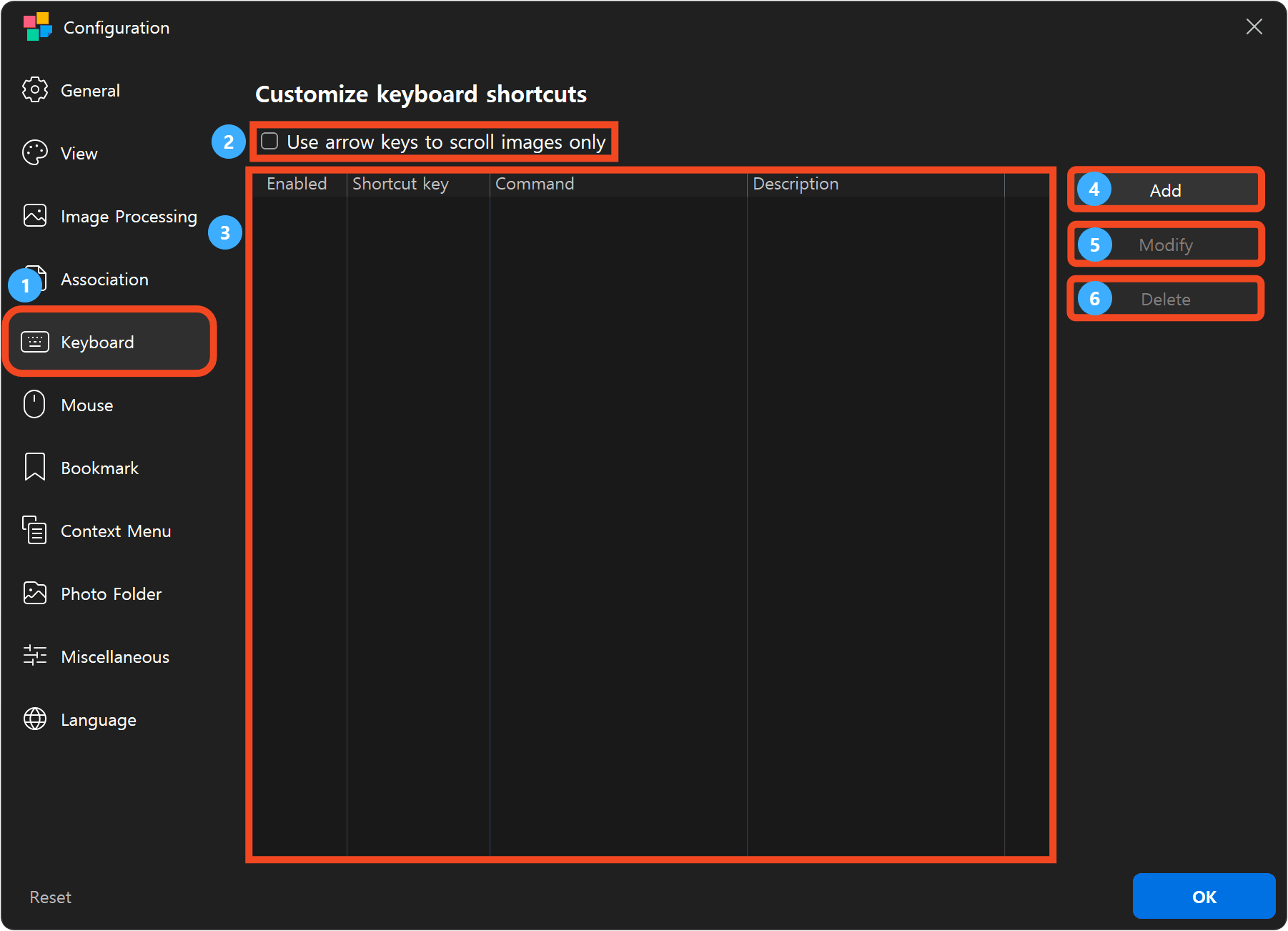
- Keyboard: Opens the shortcut customization settings.
- Use arrow keys for image scrolling only: Sets arrow keys to scroll images instead of switching images.
- Custom shortcut list: Shows each shortcut, command, and description. Use the checkbox in the first column to enable or disable an entry.
- Add: Assigns a new shortcut to a command.
- Modify: Changes the shortcut or command of the selected entry.
- Delete: Removes the selected custom shortcut.
Add a shortcut
Click Add to open the Shortcut key dialog. This example assigns Ctrl+1 to open About BandiView.
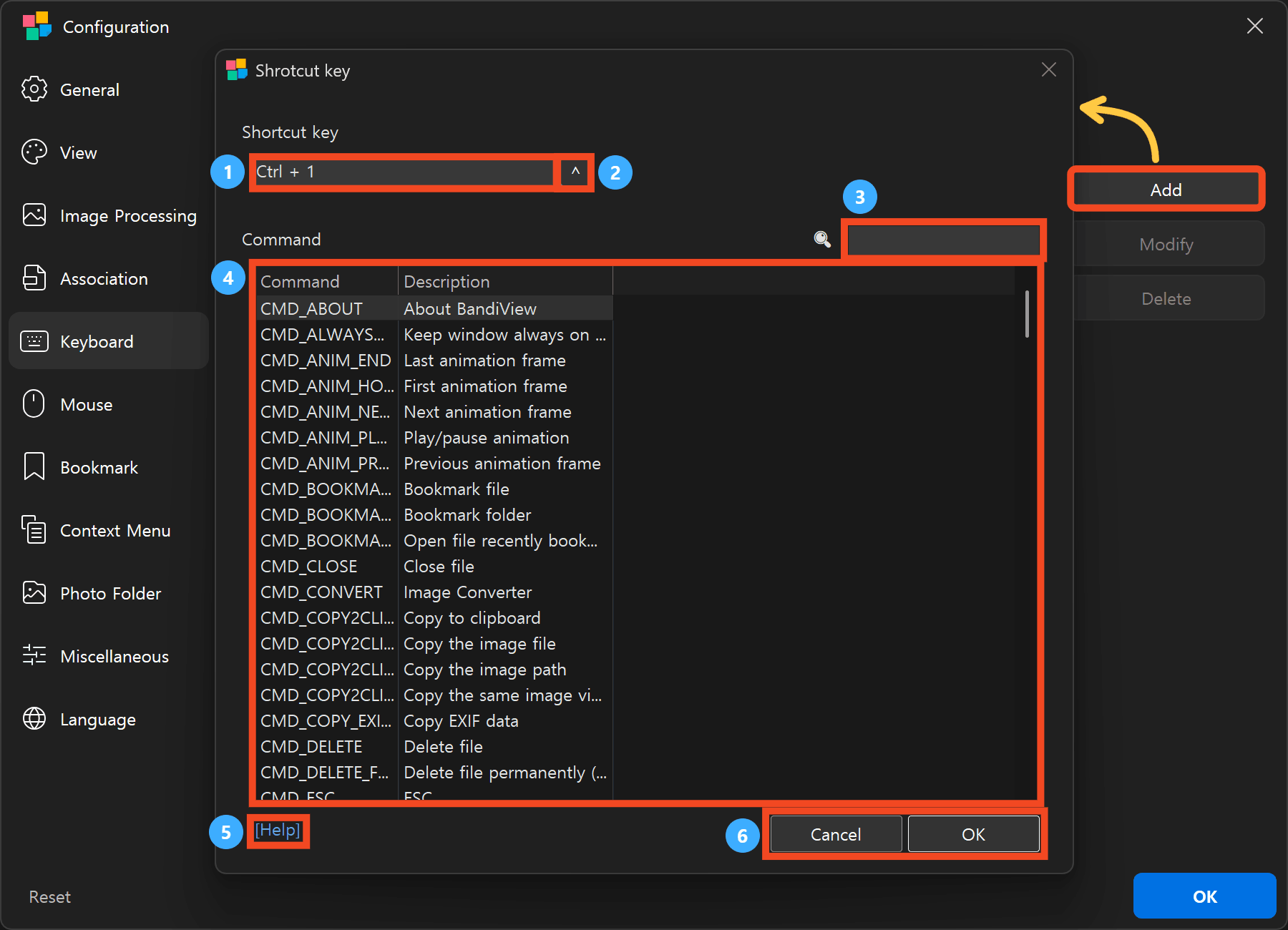
- Click the Shortcut key field and press the desired combination. For example, hold Ctrl and press 1.
- Click ^ to select Enter, Space, ESC, Tab, Backspace, or Delete. To combine a key with Ctrl, Alt, or Shift, hold the modifier while selecting the menu item.
- Enter part of a command name or description in the search field to filter the list. For example, enter CMD_ABOUT or About BandiView.
- Select the command to run. For this example, select CMD_ABOUT, whose description is About BandiView.
- Click Help to open the shortcut reference and check the default shortcuts and commands.
- Click OK to add the shortcut, or Cancel to close the dialog without adding it.
Check that the list shows Ctrl+1, CMD_ABOUT, and About BandiView, with the entry enabled.
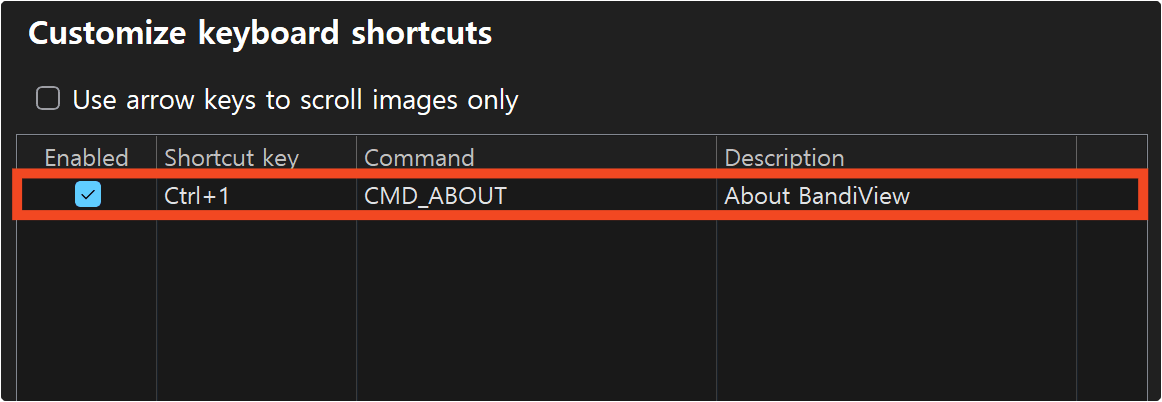
Click OK in Configuration to save your settings. Pressing Ctrl+1 in the BandiView image viewer now opens About BandiView.
Temporarily disable a shortcut
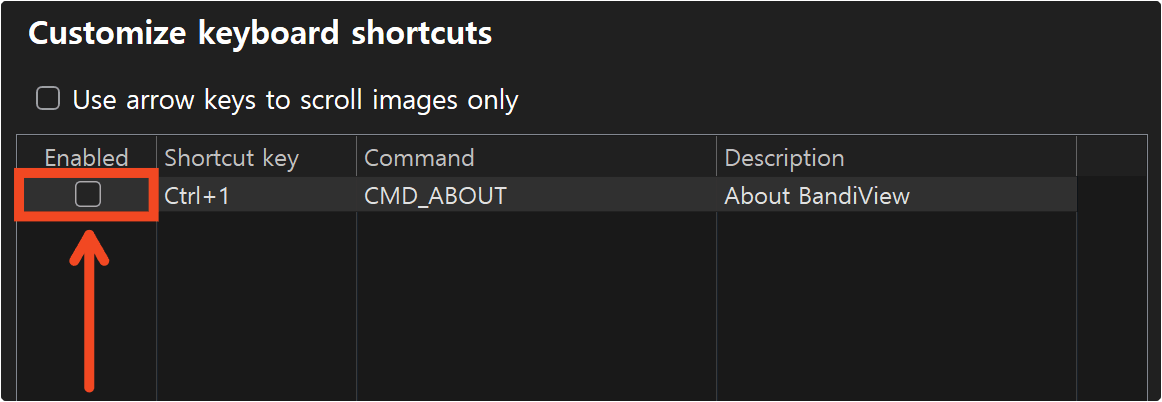
Clear the checkbox in the first column to disable the custom shortcut. The entry stays in the list, so you can enable it again later. You can also select an entry and press Space to toggle it. Click OK in Configuration to save.
Modify a shortcut
Select an entry and click Modify. You can also double-click the entry to open the Shortcut key dialog.
You can also change the key combination and command together. Enter a new key combination and select a different command in the Shortcut key dialog, then click OK.
Change the key combination
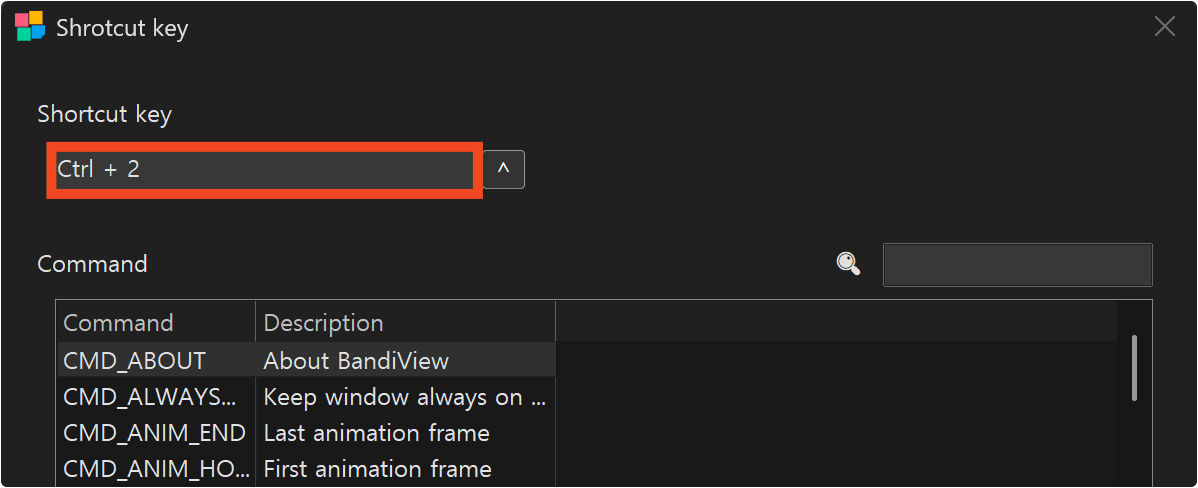
Click the Shortcut key field and press a new combination. Changing Ctrl+1 to Ctrl+2 while keeping the same command changes only the key used to open About BandiView.
Change the command
You can keep the shortcut and select a different command. For example, select Keep window always on top instead of About BandiView to change what the same key combination does.
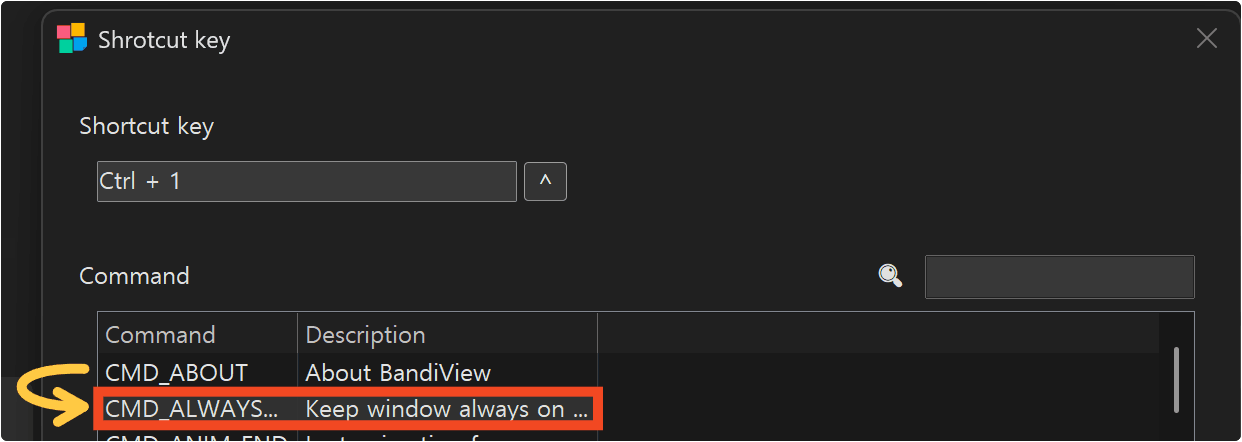
Click OK in the Shortcut key dialog, check the updated entry, and click OK in Configuration. If the entry was disabled, enable it to use the modified shortcut.
Delete a shortcut
Select an entry, click Delete, and click OK in Configuration. This removes the custom shortcut from the list. If you plan to use it again, disable it instead of deleting it.
Frequently asked questions
Why is OK unavailable in the Shortcut key dialog?
Enter a shortcut and select a command to enable OK. Changing the search text refreshes the list, so select the desired command again.
What happens if multiple entries use the same key combination?
If multiple custom entries use the same key combination, the first enabled matching entry in the list takes priority. If an unexpected command runs, modify or disable other entries using that combination.
Why are Modify and Delete unavailable?
Select a custom shortcut in the list first. If the list is empty, click Add to create one.